
- Overview
- Quickstart
- Trust and compliance
- Governance
- Features
- Cartographer
- Delegate for Testing
- Reference
- Troubleshooting
Cartographer, Delegate's specialized profile for business analysts, which documents AS-IS and TO-BE business processes and generates a Process Design Document (PDD) for redesign or automation projects.
Cartographer is a specialized Delegate profile for business analysts, distinct from the general-purpose experience — see Delegate profiles in the Introduction.
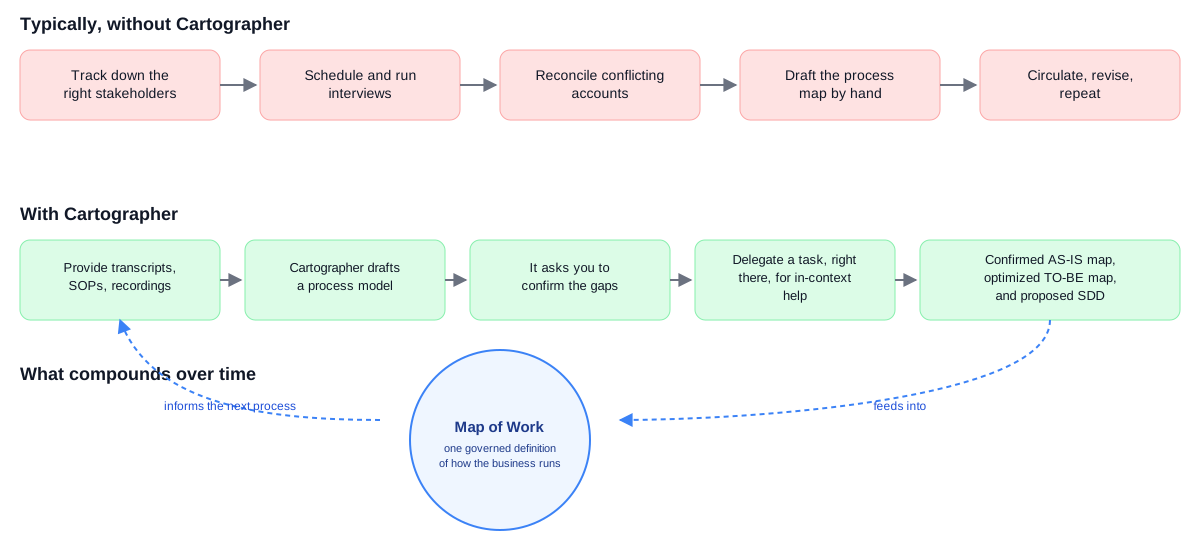
Cartographer's long-term goal is the Map of Work: a single, versioned, governed definition of how the business runs, so specifications, sign-off, and audit come from one source of truth instead of drifting documents. Today, its core capability is documenting a process — powered by a set of preset, predefined skills, not a separate application. Once it builds a clear understanding of an existing or planned business process, it documents the current process and proposes new process designs that achieve stated business, process, and compliance goals, communicated through process diagrams and Process Design Documents (PDDs).
A formatted PDD describing the future ("to-be") process is ready for stakeholder review or handoff to a development team, typically through a Specification Design Document (SDD).
Documenting a process usually means chasing down the people who know it, running interviews, and reconciling accounts that disagree with each other — all before you can even start drafting. Cartographer takes on that legwork directly:
Switching to Cartographer
Cartographer sits in the same title bar switcher as Assistant and Delegate. Select Cartographer (preview) to move into it:
Work in Cartographer is organized into Business Processes — each one scoped to a single process, with its own name and a short description of what you are documenting, such as the AS-IS state, the TO-BE state, and the resulting PDD.
Who this guide is for
This guide covers Cartographer's process-documentation capability and focuses on generating a Process Design Document for a process redesign, improvement, transformation, or greenfield launch. It is written for business analysts, or anyone performing that function on a team, who need to collect available information, coordinate key design decisions, gain approvals, and move from a PDD to an SDD.
How it works
| Phase | What happens |
|---|---|
| Phase 1 — AS-IS documentation | You describe the process as it runs today. Cartographer builds a process model, extracts business rules, identifies gaps, and confirms a current-state process map. |
| Phase 2 — TO-BE design | You assign an automation mode to each step. Cartographer drafts a future-state map and detailed future-state documentation. |
| Phase 3 — PDD generation | Cartographer combines both states into a formatted, downloadable Word document. |
| Phase 4 — SDD generation | From the PDD, Cartographer builds an SDD ready for development teams, with or without coding agents. |
What you produce
- A confirmed AS-IS process map, as an embedded flowchart
- A confirmed TO-BE process map, color-coded by automation mode
- A delivery model showing each step's current and future handling
- A downloadable PDD as a
.docxfile - A downloadable SDD as a Markdown file, ready for coding agents
Model choice matters. The LLM model you select affects how well Cartographer performs. GPT 5.4 is the recommended model for this workflow. See Choosing the LLM model to change it.
Next steps
Continue to Getting started with Cartographer to prepare for your first session.